

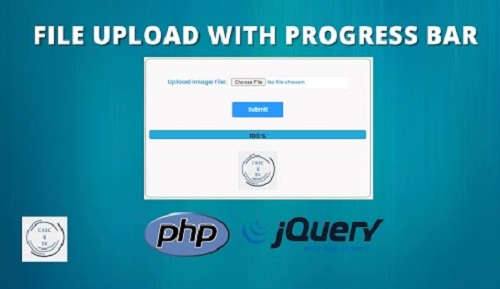
When building modern web applications, handling file uploads smoothly is crucial for user experience. Simply submitting a form and waiting for a page reload feels outdated. Users want instant feedback, visual progress tracking, and secure validation. If you want to implement a seamless upload mechanism without relying on heavy third-party plugins, building a native image upload with progress bar using PHP and jQuery is the best approach.
In this comprehensive tutorial, we will walk through how to build a lightweight, secure image uploader featuring real-time percentage tracking, HTML5 FormData, and robust server-side PHP validation.
Why Use jQuery and PHP for File Uploads?
While modern frameworks offer complex components, classic PHP combined with jQuery remains a powerhouse for lightweight projects, custom CMS platforms, and developer portfolios.
- Zero Heavy Dependencies: No need for massive node modules or bloated libraries.
- Real-Time Tracking: Leveraging HTML5
XMLHttpRequestprogress events allows accurate tracking down to the exact percentage. You can explore more about asynchronous operations in the official jQuery AJAX Documentation. - High Security Control: Complete authority over file type checking, size limitations, and directory permissions on the server.
Step 1: Create the Frontend HTML Form (index.php)
First, we need a clean HTML form containing a file input, a submit button, a dynamic progress bar, and an alert container to notify users about status updates.
Create an index.php file and add the following code:
<!DOCTYPE html>
<html lang="en">
<head>
    <meta charset="UTF-8">
    <title>Image Upload with Progress Bar Using PHP & jQuery</title>
    <style>
        body { font-family: Arial, sans-serif; background: #f4f4f9; padding: 30px; }
        .upload-container { background: #fff; padding: 25px; border-radius: 8px; max-width: 500px; margin: auto; box-shadow: 0 4px 15px rgba(0,0,0,0.1); }
        input[type="file"] { margin-bottom: 15px; width: 100%; }
        button { background: #007bff; color: white; border: none; padding: 10px 20px; border-radius: 4px; cursor: pointer; font-size: 16px; }
        button:hover { background: #0056b3; }
        #progBar { display: none; margin-top: 15px; }
        progress { width: 100%; height: 20px; }
        #alertMsg { margin-top: 15px; font-weight: bold; }
    </style>
</head>
<body>

<div class="upload-container">
    <h2>Upload Image with Progress Bar</h2>
    <form id="uploadForm" enctype="multipart/form-data">
        <input type="file" name="imageFile" id="imageFile" accept="image/*">
        <br>
        <button type="button" class="upload-btn">Upload Image</button>
    </form>

    <div id="progBar">
        <progress id="progressBar" value="0" max="100"></progress>
        <span id="progressText">0%</span>
    </div>

    <div id="alertMsg"></div>
</div>

<!-- jQuery CDN -->
<script src="https://code.jquery.com/jquery-3.6.0.min.js"></script>
<script>
$(document).ready(function() {
    $('.upload-btn').click(function() {
        var fileInput = $('#imageFile')[0];
        if (fileInput.files.length === 0) {
            alert("Please select an image file first.");
            return false;
        }

        var formData = new FormData($('#uploadForm')[0]);
        $('#progBar').show();
        $(this).attr('disabled', 'disabled');

        $.ajax({
            url: 'upload.php',
            type: 'POST',
            data: formData,
            contentType: false,
            processData: false,
            dataType: 'json',
            xhr: function() {
                var xhr = $.ajaxSettings.xhr();
                if (xhr.upload) {
                    xhr.upload.addEventListener('progress', function(e) {
                        if (e.lengthComputable) {
                            var percentComplete = Math.round((e.loaded / e.total) * 100);
                            $('#progressBar').val(percentComplete);
                            $('#progressText').text(percentComplete + '%');
                        }
                    }, false);
                }
                return xhr;
            },
            success: function(response) {
                if (response.type === 'success') {
                    $('#alertMsg').css('color', 'green').text(response.msg);
                } else {
                    $('#alertMsg').css('color', 'red').text(response.msg);
                }
                $('#uploadForm')[0].reset();
                $('.upload-btn').removeAttr('disabled');
                $('#progBar').hide();
                $('#progressBar').val(0);
            },
            error: function() {
                alert("An error occurred during upload.");
                $('.upload-btn').removeAttr('disabled');
                $('#progBar').hide();
            }
        });
    });
});
</script>

</body>
</html>
Step 2: Handle Server-Side Validation and Storage (upload.php)
Next, we need a backend script to securely process the incoming file, check formats, prevent malicious uploads, and move the file to an uploads/ directory. For deep technical references on handling server arrays and security, you can consult the official PHP File Upload Documentation.
Make sure you create a folder named uploads in your root directory with proper write permissions (755 or 777).
Create upload.php:
<?php
// upload.php - Backend processing script

if ($_SERVER['REQUEST_METHOD'] == 'POST') {
    if (isset($_FILES['imageFile']) && $_FILES['imageFile']['error'] == 0) {

        $allowedExtensions = ['jpg', 'jpeg', 'png', 'gif'];
        $fileName = $_FILES['imageFile']['name'];
        $fileTmpName = $_FILES['imageFile']['tmp_name'];
        $fileSize = $_FILES['imageFile']['size'];

        $fileExt = strtolower(pathinfo($fileName, PATHINFO_EXTENSION));

        // Validate Extension
        if (in_array($fileExt, $allowedExtensions)) {

            // Limit file size to 2MB
            if ($fileSize <= 2 * 1024 * 1024) {

                $newFileName = uniqid('img_', true) . '.' . $fileExt;
                $uploadDir = 'uploads/';
                $destination = $uploadDir . $newFileName;

                if (move_uploaded_file($fileTmpName, $destination)) {
                    echo json_encode([
                        'type' => 'success',
                        'msg' => 'Image uploaded successfully!',
                        'fileName' => $newFileName
                    ]);
                } else {
                    echo json_encode([
                        'type' => 'error',
                        'msg' => 'Failed to move uploaded file.'
                    ]);
                }

            } else {
                echo json_encode([
                    'type' => 'error',
                    'msg' => 'File size exceeds the 2MB limit.'
                ]);
            }

        } else {
            echo json_encode([
                'type' => 'error',
                'msg' => 'Invalid file format. Only JPG, PNG, and GIF allowed.'
            ]);
        }

    } else {
        echo json_encode([
            'type' => 'error',
            'msg' => 'Please select a valid image file.'
        ]);
    }
}
?>
Don’t Miss –
10+ Best PHP Frameworks to Use in 2026: The Ultimate Guide for Developers
10+ Pure CSS Glassmorphism Cards UI Examples with Code
Best Practices for Secure File Uploads
When deploying file upload scripts in production, always keep these security measures in mind:
- Never Trust File Extensions: Always check MIME types and use
getimagesize()on the server side to verify that the uploaded file is genuinely an image. - Rename Uploaded Files: Using functions like
uniqid()or hashing filenames prevents attackers from overwriting critical system files or executing malicious scripts. - Restrict Directory Execution: Ensure your
uploads/folder has execution privileges disabled in your server configuration or.htaccessfile.
Wrapping Up
Implementing an image upload with progress bar using PHP and jQuery is a straightforward way to level up your web forms without adding unnecessary heavy plugins. By combining HTML5 FormData, AJAX progress events, and strict PHP server validation, you create a fast, secure, and user-friendly feature for any web application.
Try implementing this snippet in your next project, and let us know if you have any questions or customization ideas in the comments below!


